
🦞 If you’re not using these Clawdi features, you’ve only unlocked 20% of OpenClaw
Most Clawdi users only use the chat screen. The real power shows up when you start using the Control UI, agent templates, and per-agent channels. If you haven’t touched these yet, you’ve probably only unlocked ~20% of what OpenClaw can do.
You’re probably only using 20% of OpenClaw
If you’re like most people, your Clawdi usage looks like this:
- You open the dashboard
- You talk to your agent in the chat UI
- Maybe you tweak a prompt or a system message
That works — but it’s barely scratching the surface.
The real “OpenClaw magic” shows up when you treat your agent as an environment you can operate, not just a chat box you talk to.
There are three features that change everything:
- Control UI – see and control what’s happening inside your agent’s CVM
- Agent templates – stop reinventing configs every time you create an agent
- Per-agent channels + config – give each agent its own bots and wiring
If you’re not using these yet, you’ve probably only unlocked ~20% of OpenClaw.
1. Control UI: see inside your agent’s brain
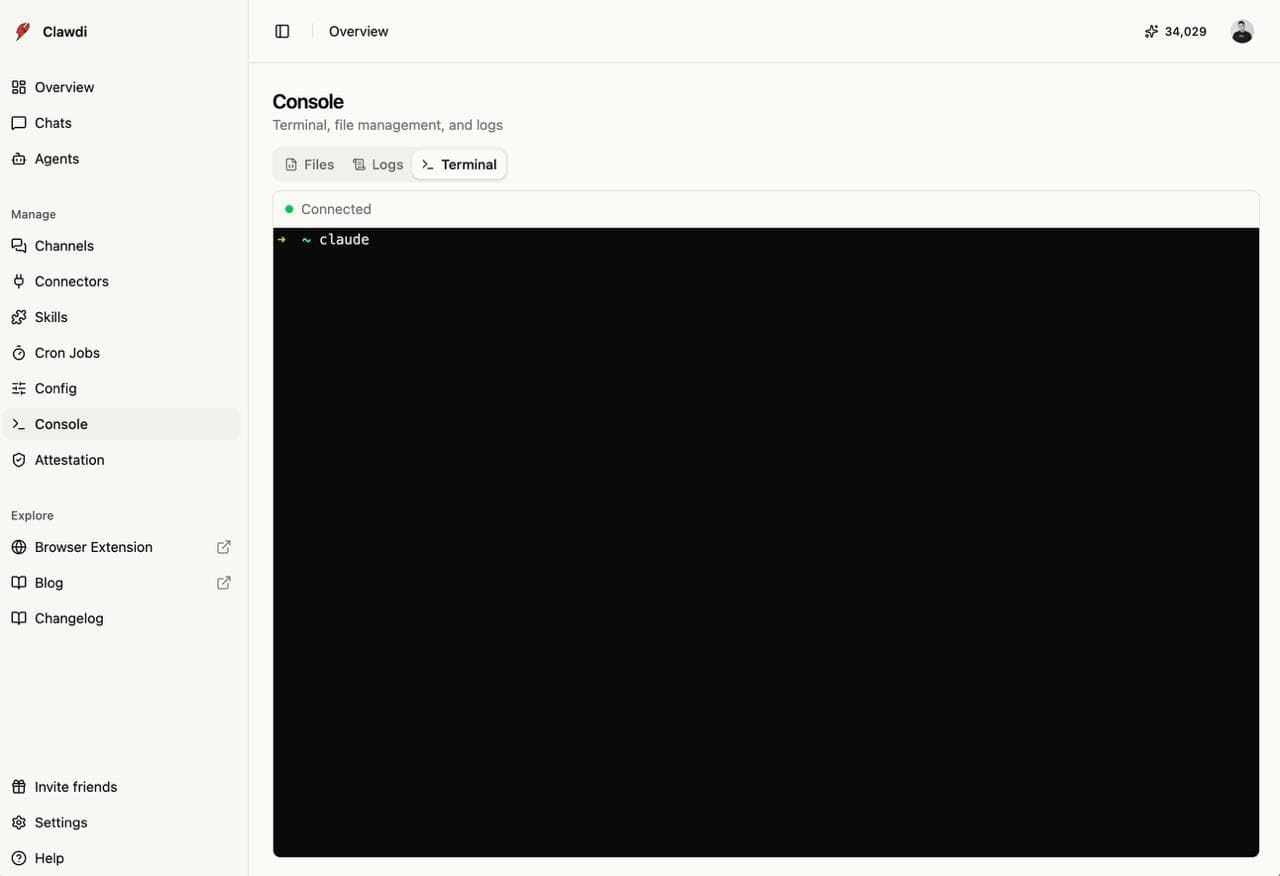
The new Control UI gives you a live window into your agent’s world:
- Files tab – browse and edit the agent’s workspace in a Monaco editor
- Logs tab – stream gateway + deployment logs in real time
- Terminal tab (Pro/Max) – a full shell into the CVM
What this means in practice:
- When something feels “off”, you don’t have to guess — you can tail the logs while you talk to the agent.
- When you want to try a new tool, you can pip install or run CLIs directly inside the CVM.
- When you need to tweak code or config, you can edit files in place instead of rebuilding images.
If you’ve never opened the Control UI for your agent, you’ve been flying blind.

2. Agent templates: stop rebuilding the same agent
Most people create their first Clawdi agent by clicking “New agent” and then guessing:
- Which model?
- Which reasoning mode?
- Which skills?
- How should exec be configured?
We’ve now bundled those decisions into agent templates.
A template gives you:
- A pre-selected model + reasoning profile that we use ourselves
- A curated set of skills wired in by default
- Defaults that match how we run production agents
Instead of reinventing the wheel, you can:
- Start from “Support agent”, “Marketing agent”, “Ops agent”, etc.
- Rename, add a couple of tweaks, and you’re live.
If you’ve been copy-pasting configs between agents, templates will save you a lot of time (and mistakes).

3. Per-agent channels and in-chat config
Every serious setup eventually ends up with multiple agents:
- One for your team
- One for your customers
- One for experiments
- One for internal ops
We’ve made those agents more self-contained by giving each one:
- Its own channel bindings
- Bind Telegram, Discord, Slack, etc. per agent
- Clawdi patches the gateway config for you
- A config side panel in chat
- See which model this agent is using
- See which channels it’s connected to
- See which skills are attached
The key shift: you no longer have to dig through YAML or JSON to understand an agent.
You can open the chat, look at the side panel, and know exactly what you’re talking to — then adjust it on the spot.

4. How we use this internally
We’re dogfooding these features ourselves:
- The newsletter you just received?
- Drafted by an agent, images uploaded via the CMS,
- Sent to thousands of users via Customer.io — all orchestrated from Clawdi.
- The X / Typefully thread from @openclawdi?
- Written as a thread by the same agent,
- Posted using a dedicated Typefully skill and the new templates.
The pattern is always the same:
- Chat with the agent to shape the idea
- Use Control UI to wire in the right tools
- Save the working setup as an agent template
- Bind it to the right channels so it can actually operate
That’s closer to 100% of OpenClaw — an operator, not just a chatbot.
How to unlock the rest of the magic
If you’ve only used the chat UI so far, here’s what to do next:
- Open your agent in Clawdi and click Control UI
- Look at Logs while you chat
- Open the Terminal and run a simple command
- Peek at Files and see what’s actually on disk
- Create your next agent from a template
- Pick the closest one to your use case
- Rename it, adjust a couple of settings, and test
- Bind a dedicated bot per agent
- Give each agent its own Telegram/Discord/Slack connection
- Keep responsibilities clean and observable
If you treat Clawdi as “just another chat interface”, you’ll get chat-interface results.
If you treat it as an operator you can see, debug, and wire into your stack, you’ll get OpenClaw magic.